How to Generate a KNEC-Format Exam Paper in Minutes with PaperSetter
7 September 2026
Illustration
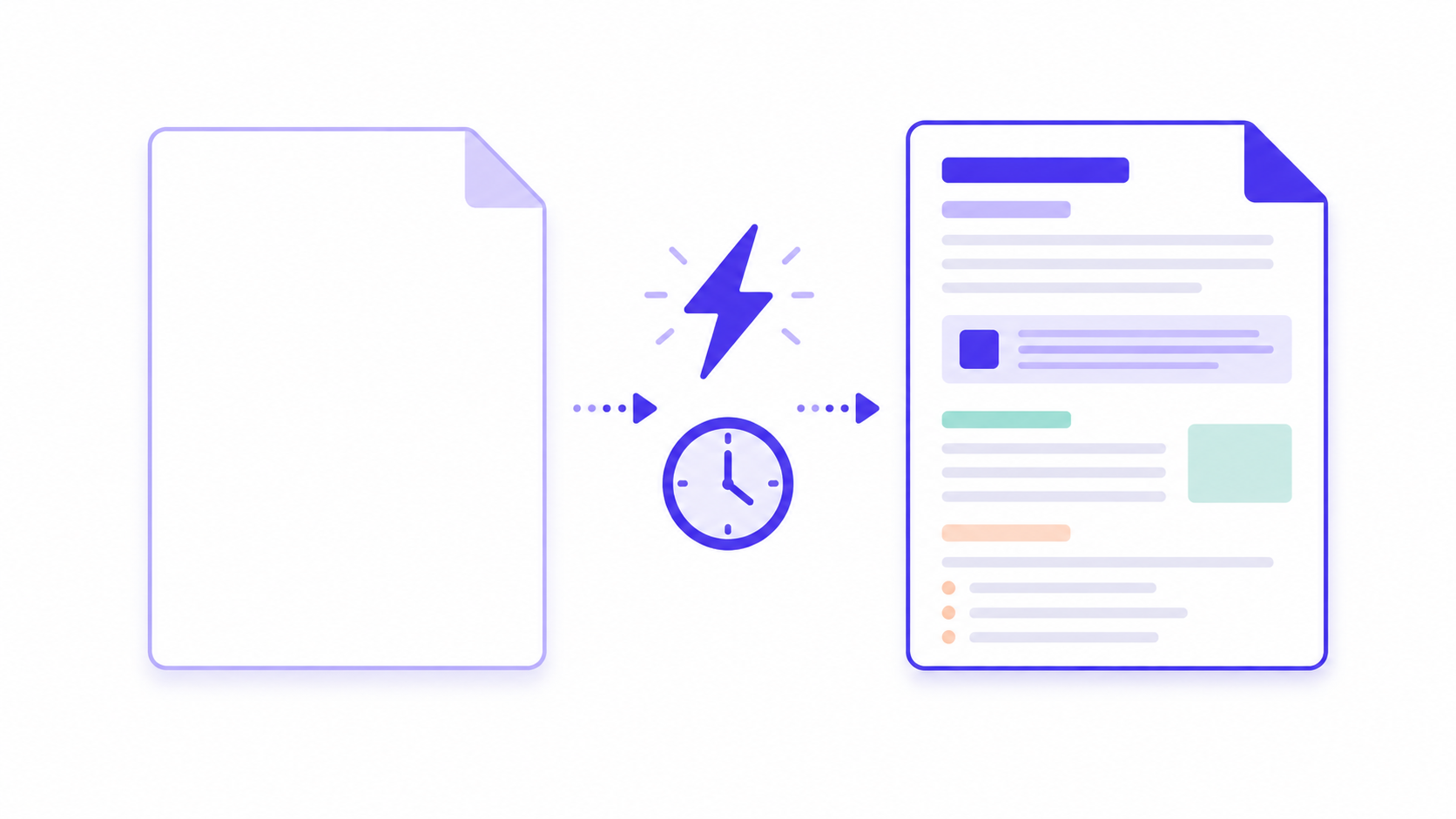
Setting a good exam paper takes time — picking questions at the right level, arranging them into sections, and formatting the whole thing so it looks like a real KNEC paper. PaperSetter is built to shorten that process without cutting corners on quality. Here's what the workflow actually looks like, step by step.
Start with grade and subject
The first thing PaperSetter asks for is the grade and subject you're setting a paper for. This matters because the question bank behind PaperSetter is organized around the CBC curriculum, so the questions you're offered are already scoped to what's appropriate for that grade and subject rather than a generic pool you'd have to filter yourself.
Generate questions from the bank
Once your grade and subject are selected, PaperSetter pulls questions from its curated, CBC-aligned bank to build your paper. Instead of writing every question from scratch, you're working from a set of ready questions that you can review and adjust before finalizing — a much faster starting point than an empty document.
Organize into sections
Real exam papers aren't just a flat list of questions — they're structured into sections, each carrying its own weight. PaperSetter lets you organize your paper into sections (Section A, Section B, and so on) with configurable target marks and question counts per section. This means you can shape the paper to match a specific structure — for example, a section of short-answer questions worth 20 marks followed by a section of longer questions worth 30 — instead of manually counting and rebalancing marks yourself.
Turn on KNEC Format
This is where the paper starts looking like something a KNEC examiner would recognize. Toggling on "KNEC Format" applies official KNEC-style formatting to your paper — the sections, headers, and cover page layout that match real KPSEA and KJSEA paper conventions. Rather than manually reformatting a paper after the fact to look "official," you get that structure applied directly, so what you generate is closer to what you'd hand out on exam day.
Download the PDF
Once you're happy with the questions, sections, and formatting, the final step is downloading the paper as a PDF. It's ready to print as-is — no extra formatting pass needed on your end. And if you're not quite done, you don't have to start over: PaperSetter lets you save the assessment and come back later to edit it, regenerate the PDF, or pull the marking scheme when you need it.
A workflow, not a shortcut
None of this replaces your judgment as a teacher — you're still the one deciding which questions make the cut and how the paper should be weighted. What PaperSetter changes is how much of the mechanical work — pulling questions, organizing sections, applying KNEC-style formatting — happens for you, so more of your time goes to reviewing the paper rather than assembling it from a blank page.
More on PaperSetter How-To
Ready to build a KNEC-format exam paper for your class? Start your free PaperSetter trial.